
Unity Graph Toolkit Framework – What Is It and What Does It Offer?
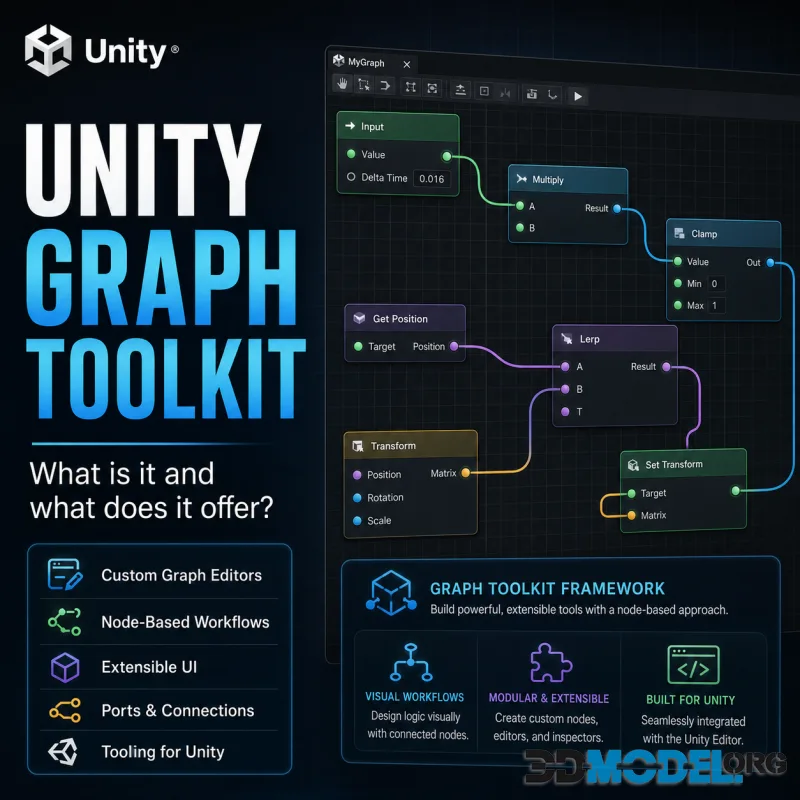
What Is Unity Graph Toolkit Framework and Why Use It?
Unity just rolled out a new experimental framework for building node-based tools – Unity Graph Toolkit. Today, we’ll break it down: what it is, what it offers, and whether it’s even worth your time or nah.
So… What’s in the Box?
The Graph Toolkit gives you a solid framework for whipping up node-based tools right in the Unity Editor. It lets you create custom nodes and handles all the UI stuff – adding, connecting, and tweaking nodes on the canvas – that so you can focus on your actual logic instead of fighting with buttons and wires.
On top of that, it follows Unity’s UI/UX standards, so anything you build with it won’t feel out of place. Plus, it’s got enough flexibility under the hood to tweak things if you need to.
Not bad for an experimental package, huh?
Who’s it for (And Who’s It Not for)?
Graph Toolkit lets you build visual graphing tools and is a powerful addon for anyone who needs to simplify complex systems, speed up workflows, or let non-tech users edit content visually – with zero coding required.
Do You Really Need It, Actually?
GTK makes building graphing tools way faster and easier. Testers found they could whip up solutions in half the time compared to older tools like GraphView. Speaking of which, GraphView’s just a UI library. Thus, GTK’s a full-on framework that handles more out of the box: serialization, undo/redo, and so on.
So yeah, it’s cool. Damn cool.
What’s It Do?
Unity’s Graph Toolkit Framework is a powerhouse for visual programming and editor extensions. Need node editors, visual scripts, or data graph tools (like behavior trees, shader graphs, or dialogue systems)? GTK’s got you.
The core is in nodes (boxes) that’re connected by edges (lines), therefore forming a graph. No more spaghetti code – just drag, drop, and connect. GTK also gives you an API for custom nodes, managing connections, and handling dragging, zooming, and selections.
Why’s It Great?
There’re plenty of reasons for this, honestly. Let’s break it down in a list for convenience:
- Unity Editor integration. Drop graphs into your editor windows using UI Elements or IMGUI.
- Serialization. Save and load graphs as JSON or binary.
- Flexibility. Use it for game mechanics, AI trees, procedural generation – heck, even dialogue systems (nodes = lines, edges = choices).
- It’s community-driven. Well, not official Unity, yet it’s actively developed and crazy modular. Perfect if you need visual programming without reinventing the wheel.
You know what else you’ll might need?
We bet you do. We’re talking about 3D content. Here, you’ll find thousands of Unity assets for every taste: vehicles, clothes, gadgets, tools, and so on. And it’s all totally free, no registration required. We’ve also even got all kinds of fantasy stuff, like, exotic characters, creatures from other popular titles, that sort of thing.
You’ll definitely find something you like. Just give it a shot!
Not really into Unity? No worries. We’ve got content for Poser and Daz 3D too – a whole separate category for them.
Try it out.
Ctrl
Enter
Noticed a misTake
Highlight text and press Ctrl+EnterRelated news:
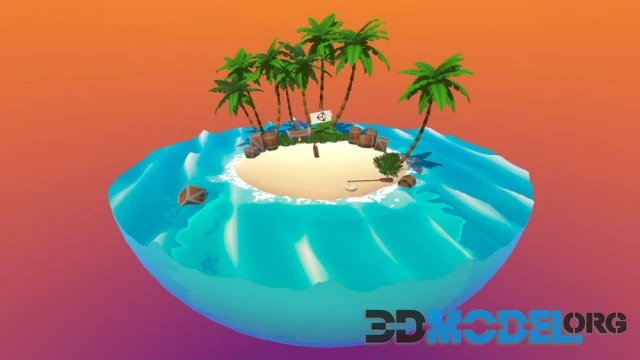
Using Shader Graph to Create Realistic Materials in Unity
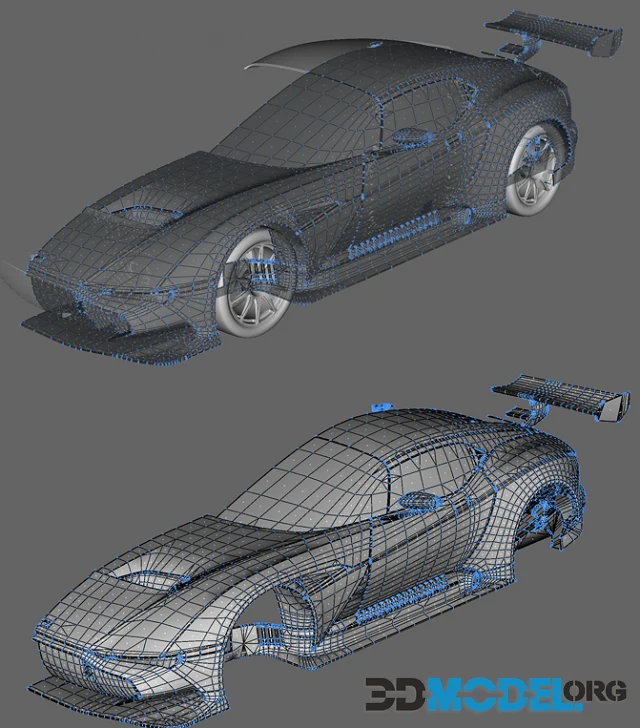
How to Create 3D Models of Cars

How to Create Realistic Architectural Renderings in 3ds Max

Creating Detailed Buildings for Architectural Visualization in 3ds Max: Techniques and Secrets
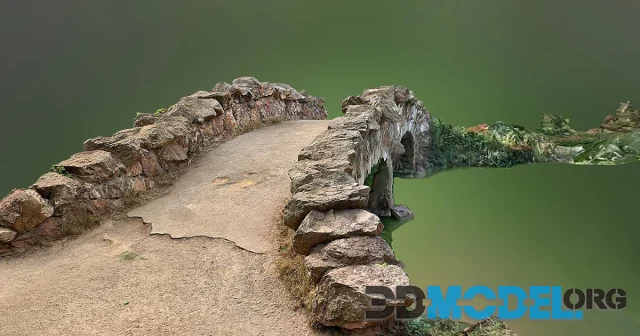
Using Photogrammetry to Create 3D-Models For Game Development
Where Can I Sell My 3D-Models?
Comments (0)
Information
Users of Guests are not allowed to comment this publication.
Users of Guests are not allowed to comment this publication.